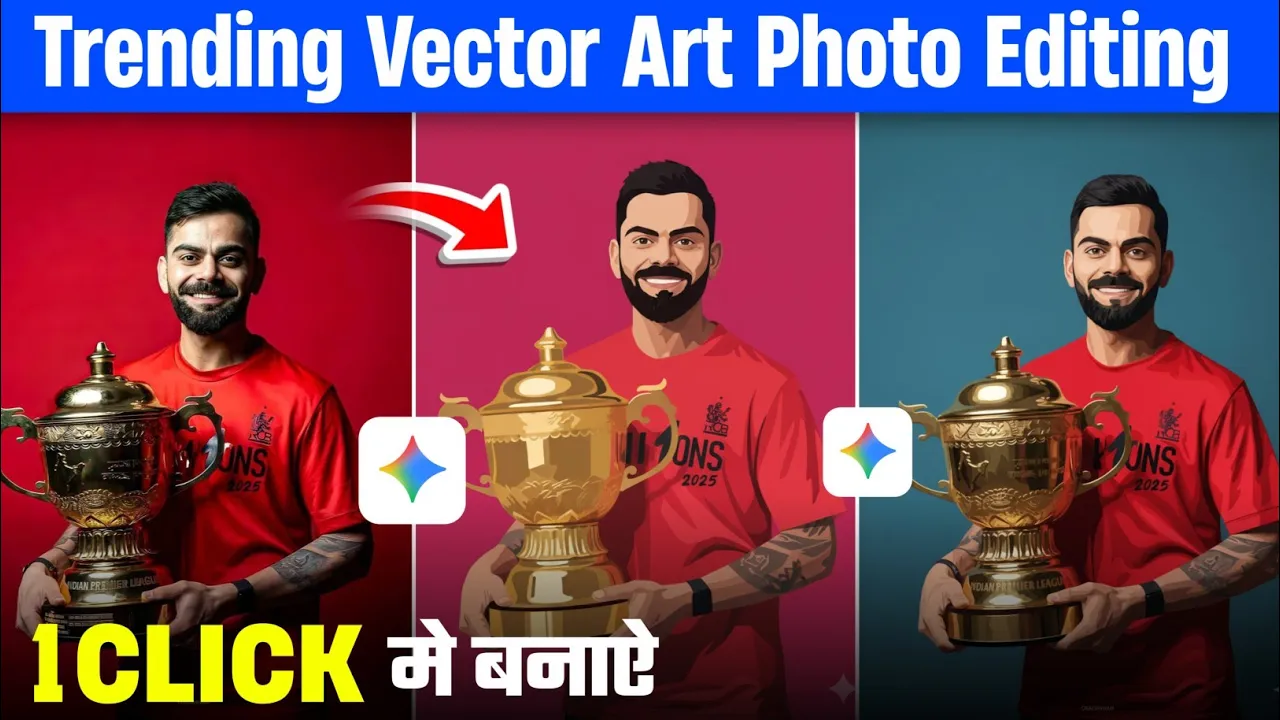
How to Convert Your Normal Photo into a Stunning Vector Art Using Google Gemini AI
🎨 Hello guys! In today’s tutorial, I’m going to show you how you can easily turn any normal photo into a vector art-style image using Google Gemini AI. The best part? You don’t have to manually edit anything! The AI will do all the work for you within seconds. So, make sure to read this tutorial till the end.
Step 1: Open Google Gemini in Chrome Browser
First, open your Chrome browser — it’s available on every Android and iPhone device. In the search bar, type “Google Gemini” and hit enter. Once the search results appear, click on the official Gemini website (usually the first result) or visit directly:
https://gemini.google.com/.
💡 Note: While Gemini also has a mobile app, the web version is more stable and works better for generating vector images.
Step 2: Upload Your Photo
After opening Gemini, log in with your Google account. Then, click on the “+” (plus) icon and choose Upload File → Photos or Videos. Select the photo you want to convert into vector art. If you can’t find it in recent files, use the three-line menu to browse folders and locate your image.
Once selected, your image will appear in the chat window, ready for processing.
Step 3: Use the AI Prompt to Generate Vector Art
Now, you need to give Gemini AI a prompt (a command) to tell it what kind of image you want. You can use this sample prompt:
Create a professional vector art illustration from this photo. Maintain face details and realistic shadows. Keep the background plain or soft-colored for clean vector-style output.
You can also modify it to suit your preferences — for example:
- “Add a yellow background.”
- “Make it look like digital comic art.”
- “Use flat color shading and soft outlines.”
After pasting your prompt, click Send. Within a few seconds, Gemini will generate your AI vector image.
Step 4: For Better Results – Use “Nano Banana” Model
If you want higher-quality output, use Gemini’s Nano Banana model instead of the default one. To do this:
- Click on the three lines (menu icon) and select New Project.
- Upload your photo again and paste the same prompt.
- Before sending, choose the “Nano Banana” model from the options.
- Click Send and wait a few seconds.
The results are often much sharper and more detailed than the normal mode — especially for facial textures and smooth shading.
Step 5: Download and Save Your Vector Art
Once your image is generated, click on the download icon and save it to your gallery. You can open it later to view in full quality — usually even higher than what’s shown in Gemini’s preview window.
Your simple photo is now transformed into stunning vector artwork without using Photoshop, Illustrator, or any complicated tools!
Bonus Tips
- Use high-quality, clear selfies for the best AI output.
- Try different lighting and background styles in prompts for creative variations.
- Experiment with PhotoRoom or Canva’s AI Image Generator for alternate AI designs.
Final Thoughts
That’s it, guys! With Google Gemini AI, you can now easily convert any normal photo into a stunning vector art masterpiece within seconds. Whether you’re an Instagram creator, digital artist, or just someone who loves experimenting with AI visuals — this trick will save you tons of time.
Keep exploring, stay creative, and don’t forget to share your AI art on social media! For more tutorials like this, check out:
If you found this tutorial helpful, share it with your friends and keep creating awesome AI photos!
See you in the next post — stay happy and keep spreading creativity! 😊
Join Our Prompt Community!
Get daily AI prompts, tips, and tricks directly in your WhatsApp.